Google Pay Nigeria: What it is, Which Cards Work and How to Set It Up

For everyone who's ever asked: does Google Pay work in Nigeria? You finally have a yes: it does. Google Wallet officially launched in Nigeria on 28 October 2026, bringing Google Pay's contactless payment capabilities to Android users in Nigeria. With a compatible, NFC-enabled Android phone and an eligible payment card, you can tap your phone to pay at contactless terminals, complete purchases in supported apps without entering your card details each time, and keep digital items like boarding passes and event tickets in one place.
That said, getting started with Google Wallet in Nigeria comes down to a few practical questions: Which Nigerian banks and payment cards does it support? How do you add a card to Google Wallet? What can you do if your bank or card isn't eligible?
This guide covers everything you need to know about using Google Pay in Nigeria. We'll also walk you through adding your Raenest card to Google Wallet, so you can understand how to use it for in-store and online payments.
What Is Google Pay and How Does It Work?
Google Pay is Google's digital payment service that lets you pay with eligible debit and credit cards linked to your account. With Google Pay, you can pay at contactless-enabled payment terminals with your Android phone, check out on supported websites, and make purchases in compatible apps without manually entering your card details each time.
What Can You Do With Google Pay in Nigeria?
Google Pay gives you different ways to pay, depending on the payment method you've added and where you're making a purchase.
- Make contactless payments in stores
You can pay at compatible contactless POS terminals by holding your NFC-enabled Android phone near the payment reader. After authenticating your payment, the transaction is sent for authorisation without requiring you to present your physical card.
- Pay on websites
At supported online checkouts, you can select Google Pay as your payment method and confirm the transaction using an eligible saved card. This saves you from manually entering your card details every time you shop.
- Pay within apps
Apps that support Google Pay allow you to select it at checkout and complete purchases using your saved payment details.
How Does Google Pay Contactless Payment Work?
Google Pay uses Near Field Communication (NFC), a wireless technology that allows two compatible devices to exchange information over a very short distance.
When you add an eligible payment card to Google Wallet, the payment system uses tokenisation to protect your card information. Instead of sharing your actual card number with the merchant during a supported transaction, it uses a digital credential called a token.
Here's what happens when you pay:
- You add an eligible bank card to Google Wallet and complete the required verification.
- Google Wallet sets up the payment credential for your device.
- At checkout, you unlock or authenticate your phone and hold it close to a contactless-enabled POS terminal.
- Your phone communicates the payment credential to the terminal through NFC.
- The payment is sent through the relevant payment network and processing infrastructure for authorisation by your bank.
- Once approved, the terminal confirms your payment.
An important distinction: Having Google Wallet installed and a supported card added does not mean you can tap your phone at every POS terminal in Nigeria. The merchant must also have a contactless-enabled terminal that accepts the payment.
Which Nigerian Banks and Cards Work with Google Pay?
Google currently lists five Nigerian financial institutions with supported cards: FirstBank, GTBank, Providus Bank, United Bank for Africa (UBA), and Zenith Bank.
Here's a breakdown of the eligible cards listed in Google's official Nigeria payment methods directory.
The list is currently weighted towards Mastercard, with UBA's Visa prepaid card being the only Visa option listed.
What if your bank or card isn't on the list?
If you use a Verve card, an AfriGO card or a card issued by a fintech that Google doesn't currently support, you won't be able to add it to Google Wallet. The same applies to Visa debit cards from the listed banks, as Google's directory currently only includes UBA Visa prepaid cards.
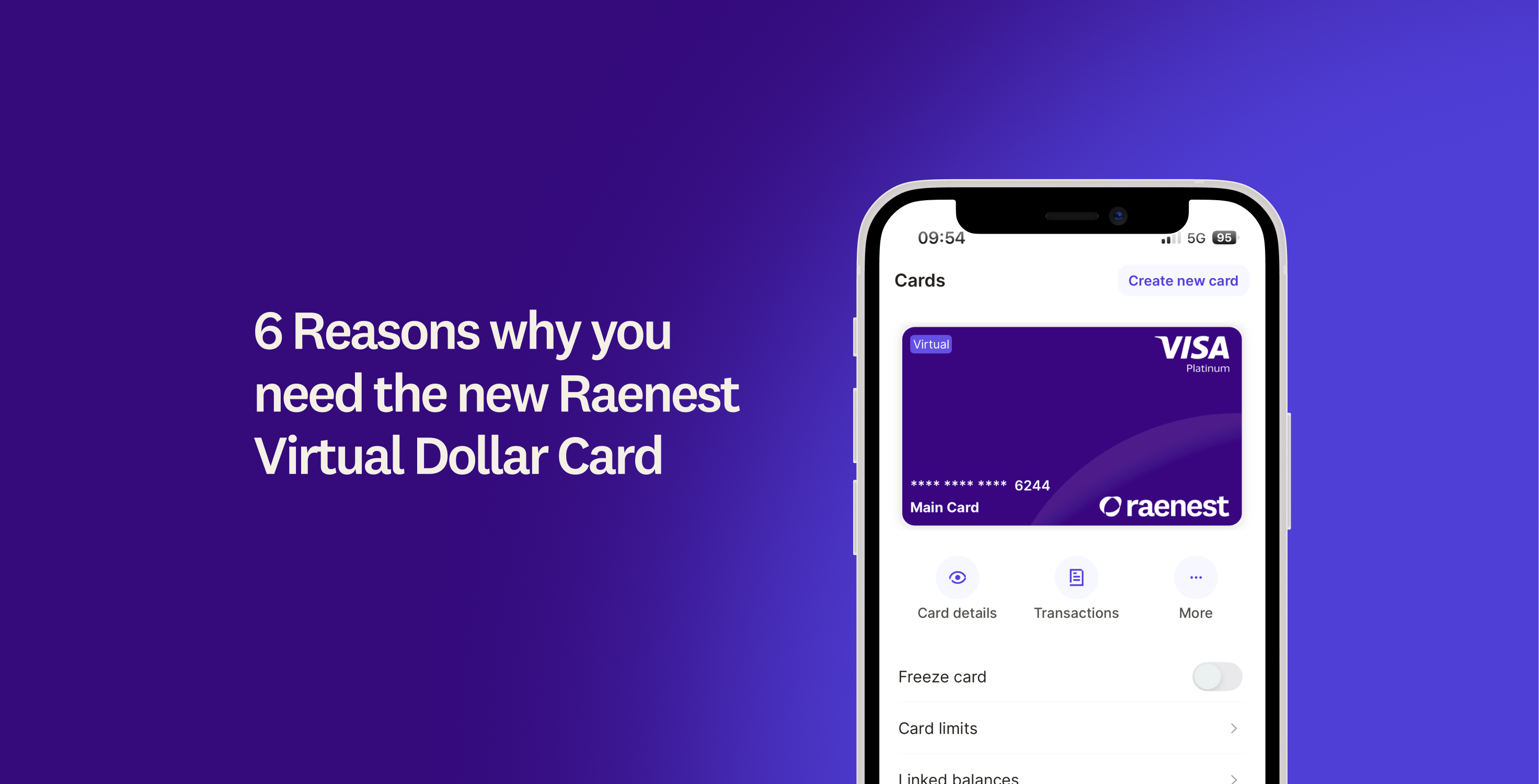
If you frequently make international payments, you can use a Raenest Visa card. Whether you're paying for software subscriptions, shopping on international websites or booking flights, your Raenest card lets you spend directly from your USD, GBP, EUR, USDT, USDC and NGN balances.
Here's what you get with a Raenest card:
- Pay from multiple currency balances: Your Raenest Visa card connects directly to your USD, GBP, EUR, NGN, USDT and USDC balances.
- Shop at over 150 million merchants: Pay for international subscriptions, shop online, book flights, and make purchases at merchants that accept Visa.
- Enjoy Visa Platinum benefits: Access valuable card perks, including purchase protection, extended warranty and worldwide auto rental insurance, subject to applicable terms.
- Make contactless payments: Add your eligible card to Google Pay and use your Android phone to pay at compatible terminals in supported countries.
- Spend with more flexibility: Depending on your KYC level, your virtual card can have daily spending limits of up to $20,000 and monthly limits of up to $60,000.
Beyond your card, Raenest gives you a platform to receive international payments, hold and convert multiple currencies, send money globally and manage your finances from one place. Create one today.
🔗Once you get your Raenest card, learn how to link it to Google Pay here.
How to Set Up Google Pay in Nigeria
Once you have an eligible payment card, setting up Google Pay is relatively straightforward. You'll need an Android phone that meets Google's device security requirements, the Google Wallet app and a screen lock. For contactless payments, your phone must also support Near Field Communication (NFC).
Here's how to get started.
Step 1: Download Google Wallet
Open the Google Play Store, search for Google Wallet and install the app on your Android phone.
Step 2: Open Google Wallet
Launch the app and sign in with your Google account. Follow the prompts to complete the initial setup.
Step 3: Add your payment card
Select Add to Wallet, choose Payment card, then tap New credit or debit card.
Step 4: Enter your card details
You can scan your physical card using your phone's camera or enter the card number, expiry date and CVV manually.
Step 5: Verify your card
Review and accept the terms, then follow your bank or card issuer's verification instructions. This may involve an SMS code, an email confirmation or verification through your banking app.
Step 6: Complete your setup
Once your card has been verified, it should appear in Google Wallet. If you have multiple cards, select the one you want to use as your default payment method.
Step 7: Enable NFC for contactless payments
Open your Android phone's settings, search for NFC and switch it on. You can now use your phone for contactless payments at compatible terminals, pas long asyour card and location are supported.
How to Use Google Pay in Nigeria
Now that you've added your card to Google Wallet, you're ready to start using Google Pay. You can select it at supported online checkouts, use it within compatible apps or pay at physical stores. While the first two may feel familiar, tapping your phone to pay at a POS terminal might be a new experience for you.
If you're trying contactless payments for the first time, here's what you need to know.
Before attempting to pay in a store, check whether its POS terminal supports contactless payments. Look for the contactless symbol, usually represented by four curved lines, on the terminal or its screen. If you're unsure, simply ask the cashier: "Does this terminal accept tap-to-pay?"
Once you've confirmed that it does:
- Make sure NFC is enabled on your Android phone.
- Unlock your phone and complete any required authentication.
- Hold the back of your phone close to the payment reader for a few seconds.
- Wait for the terminal to confirm that your payment was successful.
That's all there is to it!
A little heads-up: Google Pay is new to Nigeria, and contactless-enabled POS terminals may not be available at every store yet. So, even if your card and phone are ready, you might find that some merchants cannot accept tap-to-pay. Keep your physical card or another payment method handy while more stores adopt contactless payments.
Frequently Asked Questions About Google Pay in Nigeria
- Is Google Pay available in Nigeria?
Yes. Google Wallet, which includes Google Pay, officially launched in Nigeria on 28 October 2026. Android users can add eligible payment cards, make purchases online and within supported apps, and use contactless payments at compatible terminals.
- Which Nigerian banks support Google Pay?
Google currently lists FirstBank, GTBank, Providus Bank, UBA and Zenith Bank as participating Nigerian financial institutions. However, support depends on the card network and type. Check Google's official list of supported Nigerian payment cards before adding yours.
- Can I use my Visa card with Google Pay in Nigeria?
Yes. Raenest Visa cards support Google Pay in supported countries. You can add your eligible Raenest card to Google Wallet and use it to make contactless payments at compatible POS terminals. create a Raenest account and get your Visa card.
- Does Google Pay accept Verve cards in Nigeria?
No. Verve cards are not currently listed among Google's supported Nigerian payment methods. You'll need an eligible Mastercard or Visa card from a participating issuer.
- Can I use Google Pay on an iPhone in Nigeria?
Google Pay's Nigerian launch supports Android phones and Wear OS devices. If you're using an iPhone, Apple Pay is the relevant contactless payment option to consider. Learn how to link your Raenest card to Apple Pay.
- Can I use Google Pay without an internet connection?
You generally don't need an active internet connection at the payment terminal to complete a contactless transaction. However, you'll need internet access to download Google Wallet, add and verify your card, and manage your payment methods. Your card issuer must also be able to authorise the transaction.
- Can I use Google Pay at every POS terminal in Nigeria?
No. Your phone must support NFC, and the merchant's POS terminal must also support contactless payments. Look for the contactless symbol on the terminal or ask the cashier whether tap-to-pay is available.
- Is Google Pay free to use in Nigeria?
Adding an eligible card to Google Wallet and using Google Pay does not attract a separate Google Pay transaction fee. However, your bank or card issuer may apply charges depending on the transaction, currency conversion or card terms.
- Can I withdraw money using Google Pay?
No. Google Pay is a digital payment service, not a bank account or cash withdrawal service. You can use it to pay at supported online checkouts, within compatible apps and at contactless-enabled terminals.
- Is Google Pay safe for making payments?
Yes. Google Pay uses tokenisation to protect your actual card number during supported transactions. It also uses device authentication, such as a PIN, fingerprint or screen lock, to help ensure that you authorise payments. You can also use Google's Find My Device service to secure your phone if it gets lost or stolen.