
How to link your Raenest card to Apple Pay


Looking for an easy way to pay for purchases and subscriptions on Apple in dollars? With the Raenest Virtual Dollar Card, you can pay across Apple services like the App Store and Apple Music without the hassle. You can also add the card to Apple Pay, so you can tap to pay in stores and at checkout.
This guide walks you through adding your Raenest card to Apple Pay. If you also want to set it up across your Apple account, we've covered that separately in How to use your Raenest virtual dollar card on Apple.
Before you start
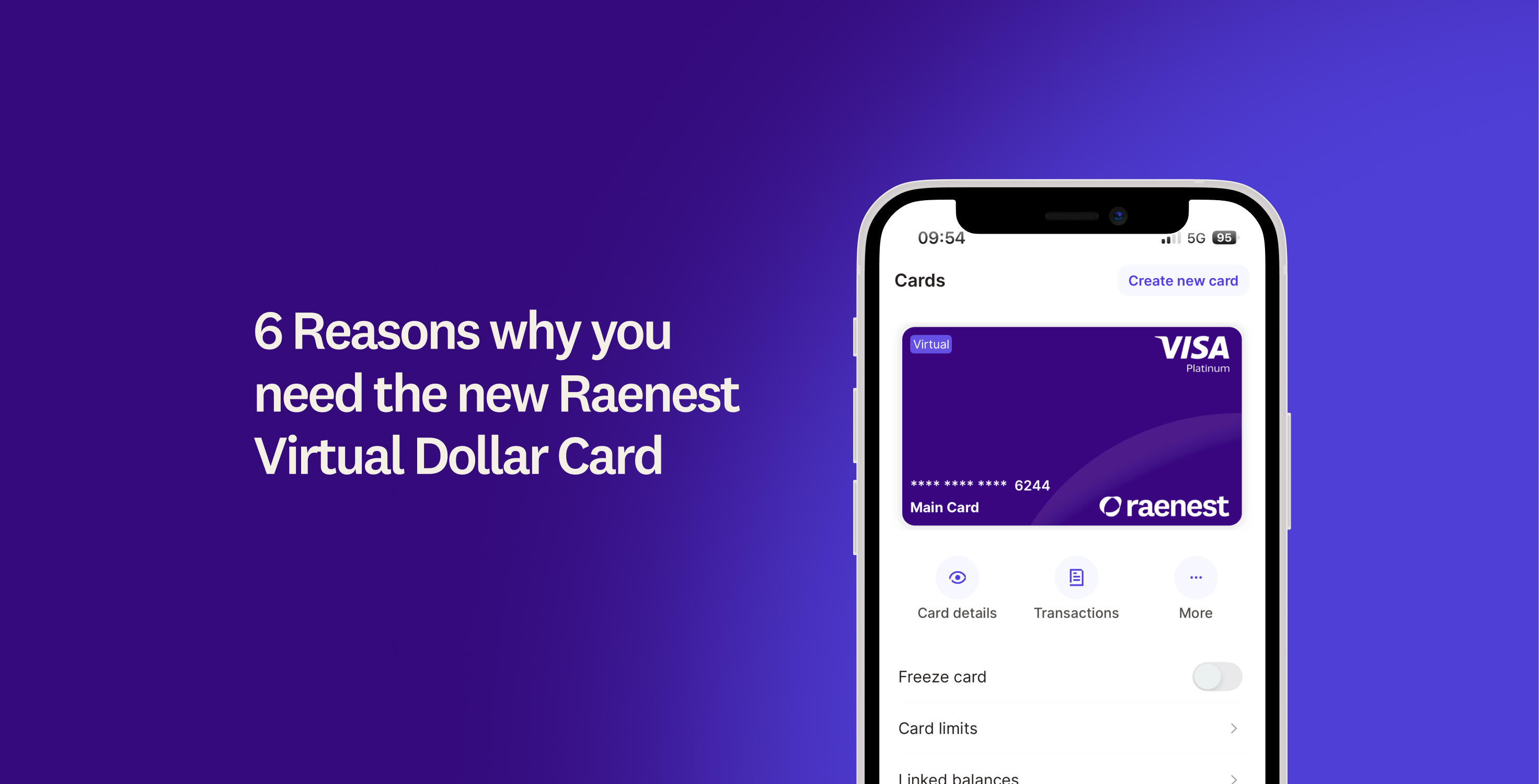
First, you'll need an active Raenest card, since you can't add anything to Apple Pay without one. If you haven't created your Raenest USD virtual card yet, open the Raenest app, go to Cards, and tap Create new card to set one up in a couple of minutes.
Apple Pay also isn't available in every country yet. If it isn't available where you are, you'll need to set your Apple ID region to the United States before you can add your card. To do this, open Settings, tap your name at the top, go to Media and Purchases, then tap Country/Region and select United States. Once that's done, the Wallet app will let you add your card.
Add your Raenest card to Apple Pay from the app
This is the quickest way, since your card details are filled in for you and there's nothing to type.
- Open the Raenest app and tap Cards at the bottom.
- Under your card, tap Add to Apple Wallet.
- Follow the prompts to agree to the terms and verify your card. Your card details are added for you.
- Once it's verified, your card is in Apple Wallet and ready to use.
Add your Raenest card through the Wallet app
If you'd rather add it from your phone's Wallet, you can enter the details yourself.
- Open the Wallet app on your iPhone.
- Tap the + button in the top right corner.
- Select Debit or Credit Card.
- Tap Enter Card Details Manually.
- Enter your Raenest card number, expiry date, and CVV. You'll find these under Cards in the Raenest app.
- Follow the prompts to verify your card.
Once verified, your card is ready to use. To pay in store, double-click the side button, hold your phone near the reader, and confirm with Face ID or Touch ID.
That's It
Your Raenest USD card is now in Apple Pay, ready for tap-to-pay wherever Apple Pay is accepted.
You don't need to fund the card separately. It spends directly from your linked Raenest balances, so just make sure the balance you've set as your priority has enough to cover the payment.
Don't have a Raenest virtual dollar card yet? You can get one instantly for just $3. Create one now to get started.
.jpg)