.jpg)

How to Create Your New USD Account on Raenest

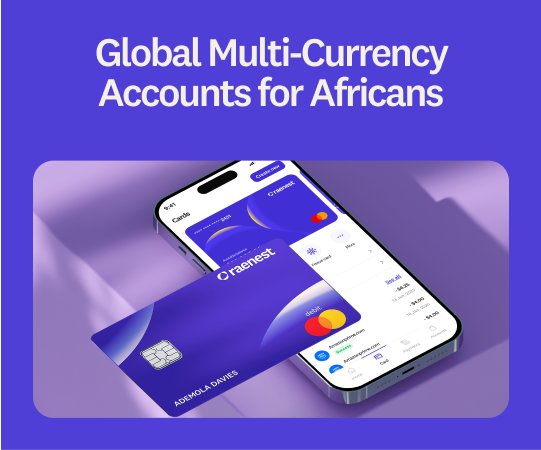
Creating your new USD account takes a couple of minutes, and once it's live, you can start receiving USD payments right away. This guide walks you through creating a USD account on Raenest, covering the full setup from opening the account to getting paid into it.
Before you start
You'll need one piece of proof of earnings to complete verification. Any of these works:
- A bank statement
- Your Raenest statement
- A signed contract
- An Upwork statement of earnings
- Another valid proof of income or earnings
Have it ready as a file on your phone or computer so the process doesn't stall halfway through. If your main purpose is receiving payments, also keep a link to your work profile handy (more on that below).
Step 1: Open your Raenest app and check the Accounts page
Some accounts were created automatically, so your new USD account may already be waiting for you. Open the app and go to the Accounts page to check.
If you see your new USD account there, you're already set. Skip ahead to After your account is created. If you don't see one yet, move on to Step 2.
Step 2: Tap Open Account
On the Accounts page, tap Open Account and select the USD account option. This starts the verification flow for your new account.
Step 3: Upload your proof of earnings
You'll be asked to upload proof of earnings as part of the bank's verification requirements. Upload a bank statement, your Raenest statement, a signed contract, an Upwork statement of earnings, or another valid proof of income. Make sure the document is clear and readable so it isn't rejected.
Step 4: Choose your primary purpose
Next, you'll select the primary purpose of the account, either:
- Receiving money from family and friends, or
- Receiving payments for your work or business
If you choose to receive payments, you'll also be asked for a link to your profile (for example, your Upwork, Fiverr, or other work profile), so have that link ready.
Step 5: Submit and get your account instantly
Once you submit, your new USD account is created instantly. Your new account details (account number and routing details) will appear in the app, ready to share with anyone who pays you.
After your account is created
Creating the account is half the job. To actually receive USD payments into it, update your new details everywhere you currently get paid:
- Upwork (this also enables faster FastTrack withdrawals)
- Fiverr
- Payoneer
- Gusto
- Employer or payroll systems
- Clients and invoices
- Any other payment platforms
Your old Wells Fargo USD account has been retired, so any incoming deposits won’t be processed. Updating right away is the best way to keep your money intact.
Good to know
- Your funds are safe. Your balances, transaction history, and existing funds are unaffected by creating a new account.
- SWIFT deposits aren't supported on the new USD account. If you normally receive money via SWIFT, use ACH, domestic wire, or set up a GBP or EUR account or a USDT/USDC wallet in the app instead. We’re working to get this up and running, and you’ll receive updates pretty soon.
Ready to get started? Update your USD account and enjoy two free deposits this month. Never miss an uipdate, Join the community!
Frequently Asked Questions
- How long does it take to create a USD account?
A couple of minutes. Once your proof of earnings is submitted, the account is created instantly.
- My document keeps getting rejected. What should I do?
Upload a clear, full-page version of a bank statement, your Raenest statement, a signed contract, or an Upwork statement of earnings. If it still won't go through, our support team is available 24/7 to help.
- I don't see an Open Account option. Why?
Your account may have already been created automatically. Check the Accounts page first. If it isn't there and the option is missing, reach out to support.
- Can I keep using my old Wells Fargo account while I set this up?
No. The old account has been retired and no longer accepts new payments, so create and switch to your new USD account as soon as you can.
.jpg)

